customers · FPS guide · BOC
how to pay by FPS on the BOC app
Paying a divit merchant from Bank of China by FPS (Hong Kong’s Faster Payment System, 轉數快) takes seconds and is free. Three ways to do it — scan the QR code, import a saved QR code, or pay by divit’s FPS ID. Here’s each one, step by step.
- free for you: the merchant pays the fee, not you
- no card needed: you pay straight from your BOC account
- divit’s FPS ID is 162638308: if you pay by FPS ID instead of QR code
- include the 6-character code in the “remarks” field when paying by FPS ID; without it your order may not be confirmed
step by step
paying divit from the BOC app
Pick whichever suits how you’re paying — scanning at a counter, paying an online order with a saved QR, or entering divit’s FPS ID by hand.
scan the QR code
-
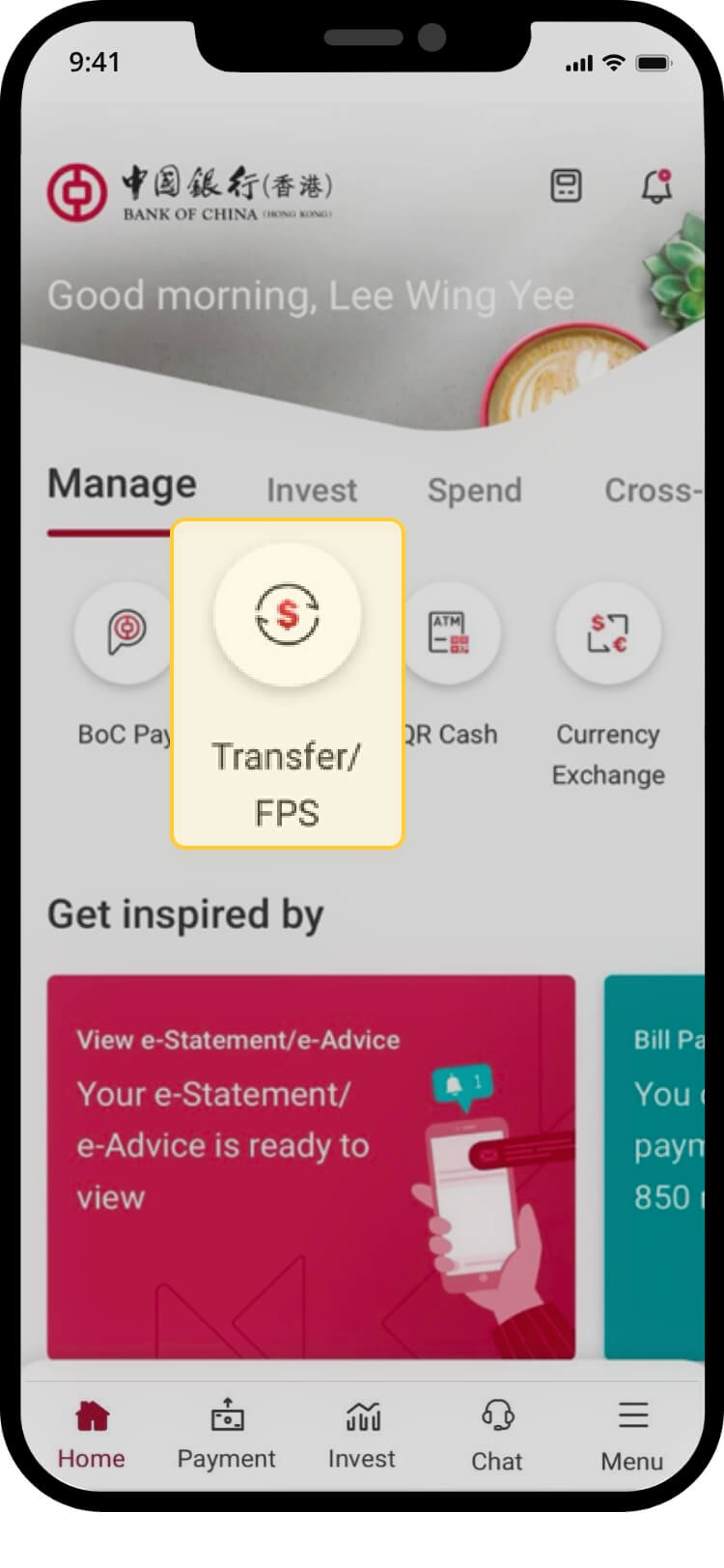
01 · open transfer. Log on, then under manage tap transfer / FPS.
-
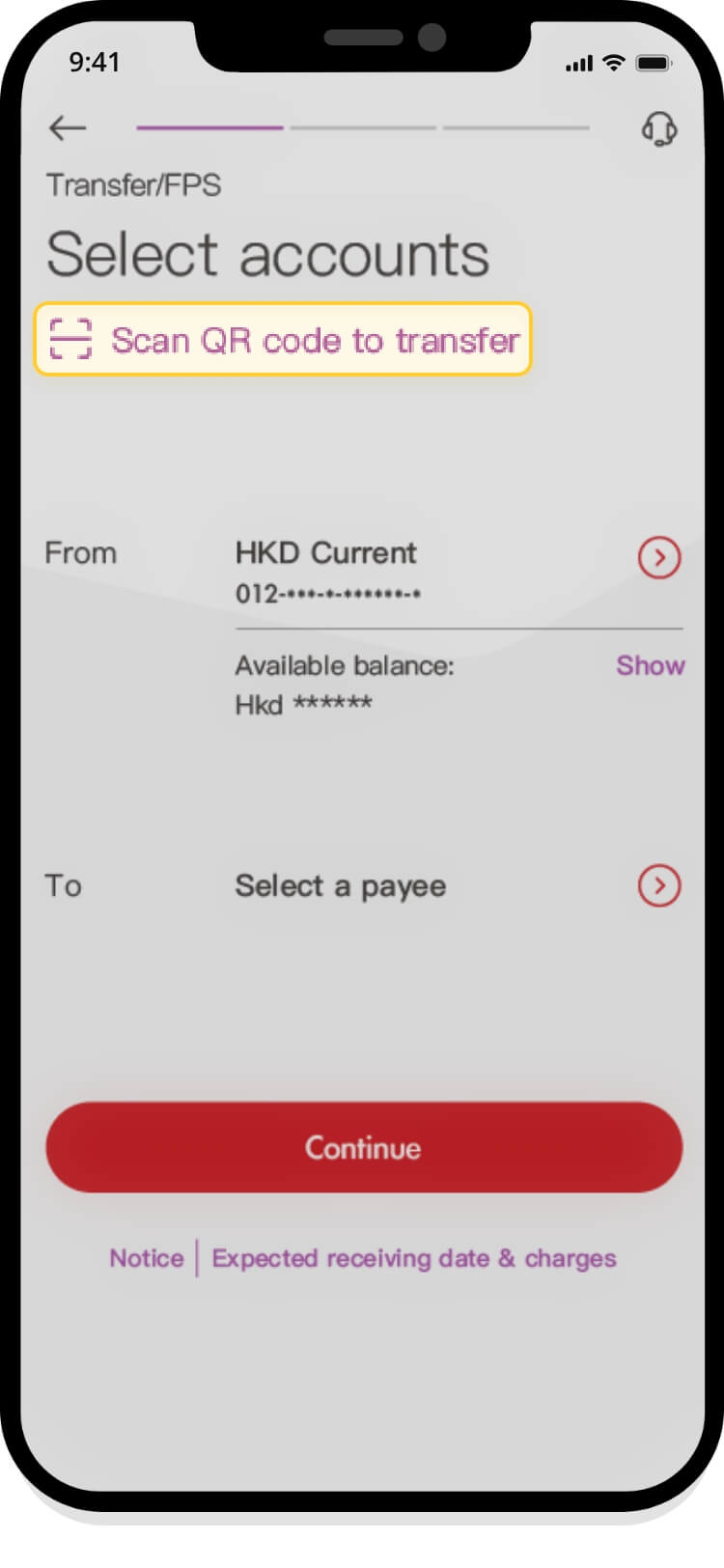
02 · choose scan to transfer. Tap scan QR code to transfer.
-
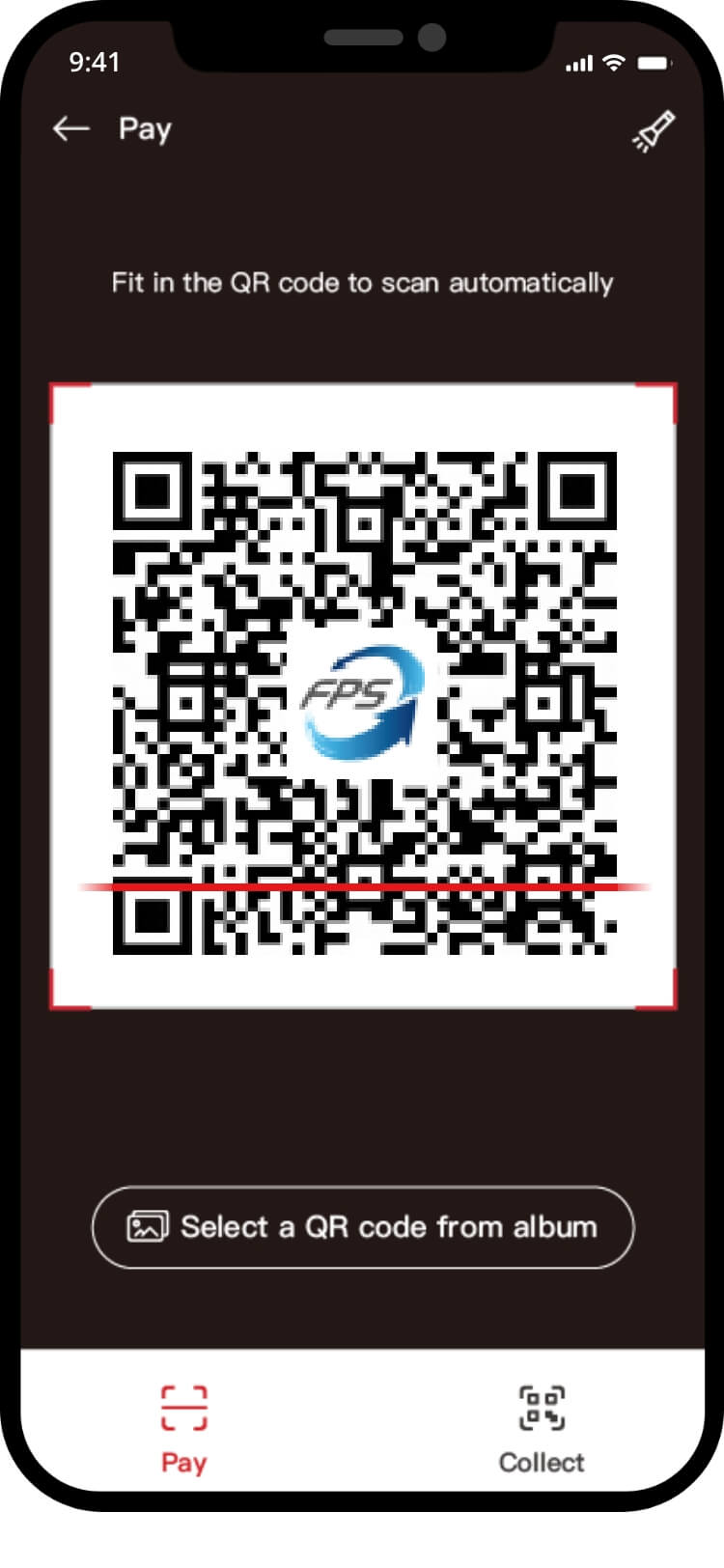
03 · scan the QR code. Point your camera at the divit FPS QR code, or tap select a QR code from album to use a saved one.
-
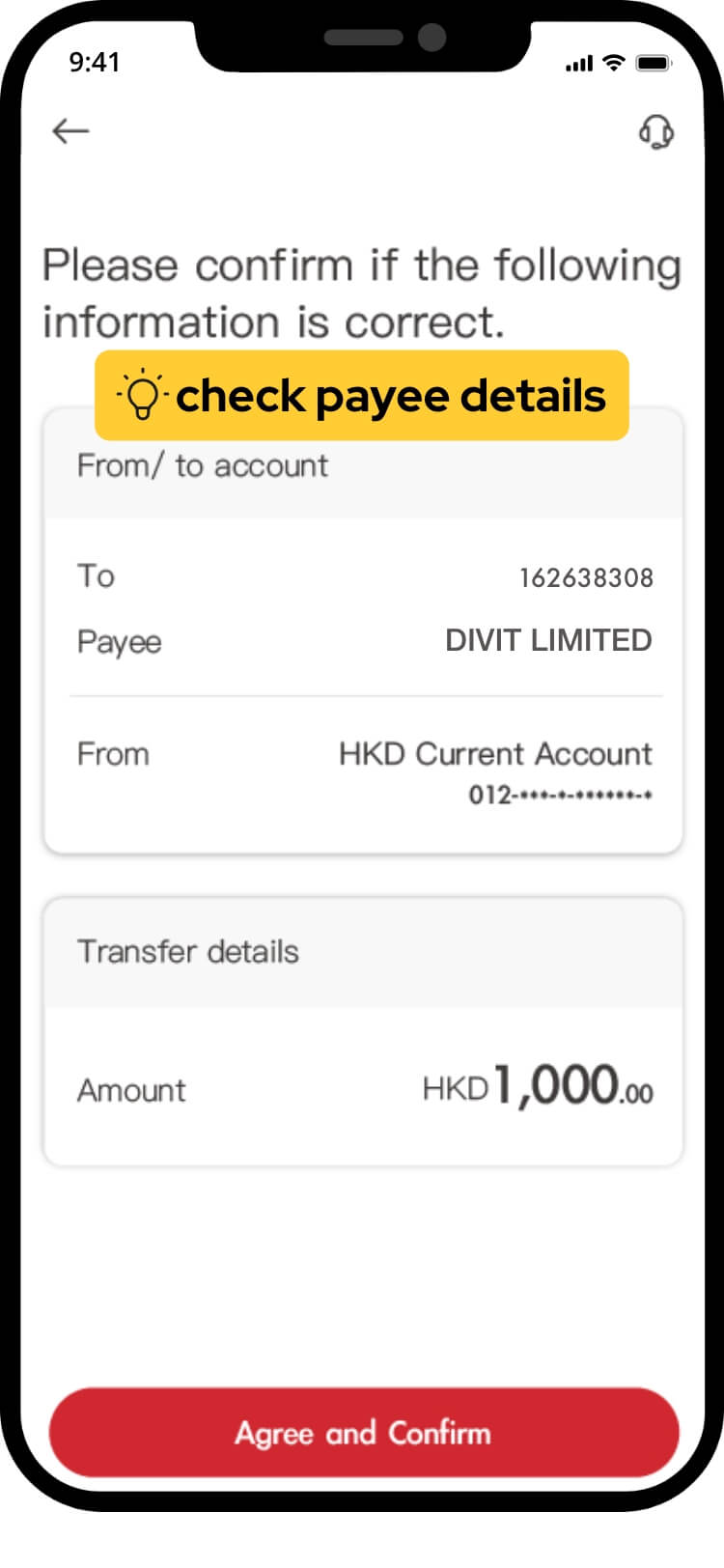
04 · check the details. Verify the transaction details and tap confirm.
-
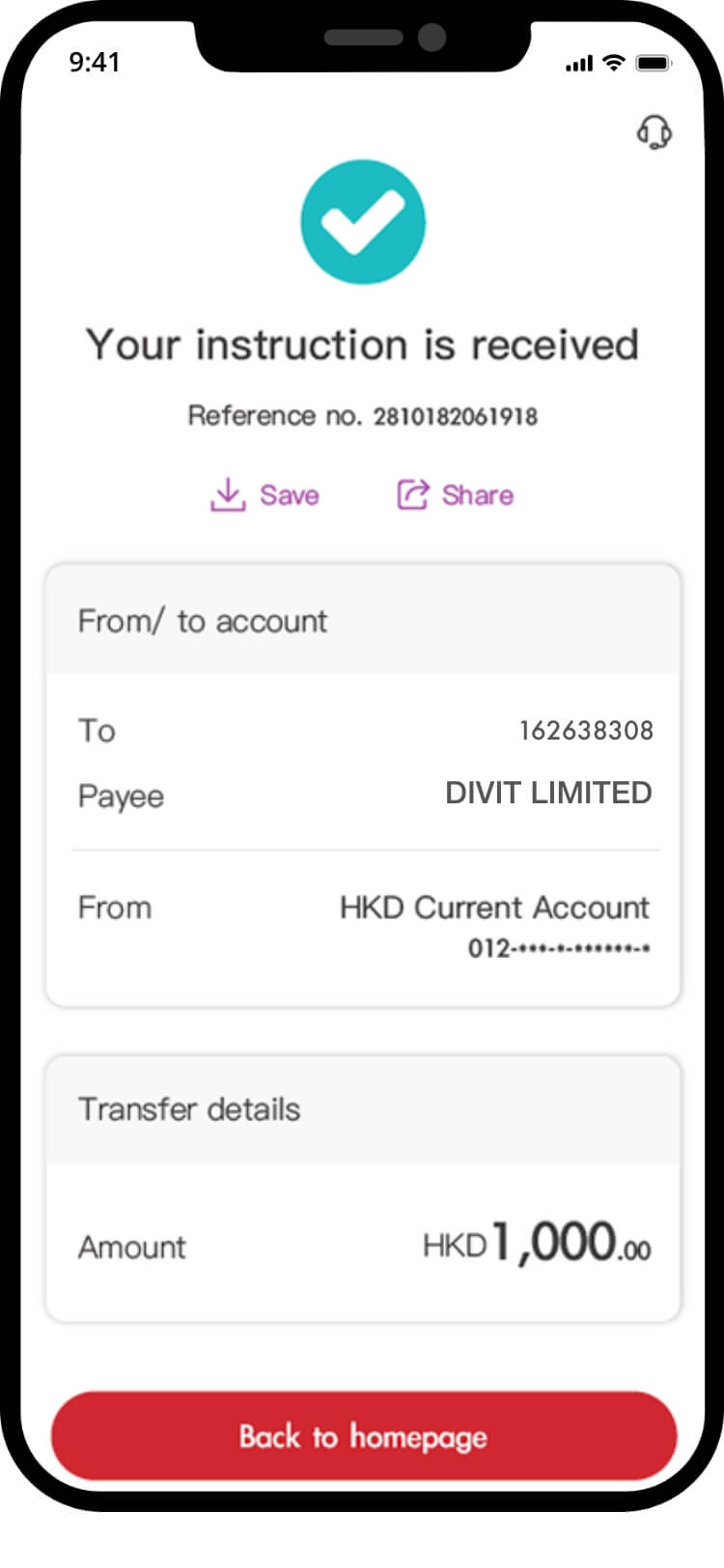
05 · done. Your transfer is complete — you’ll get a confirmation by SMS and email.
import a saved QR code
-
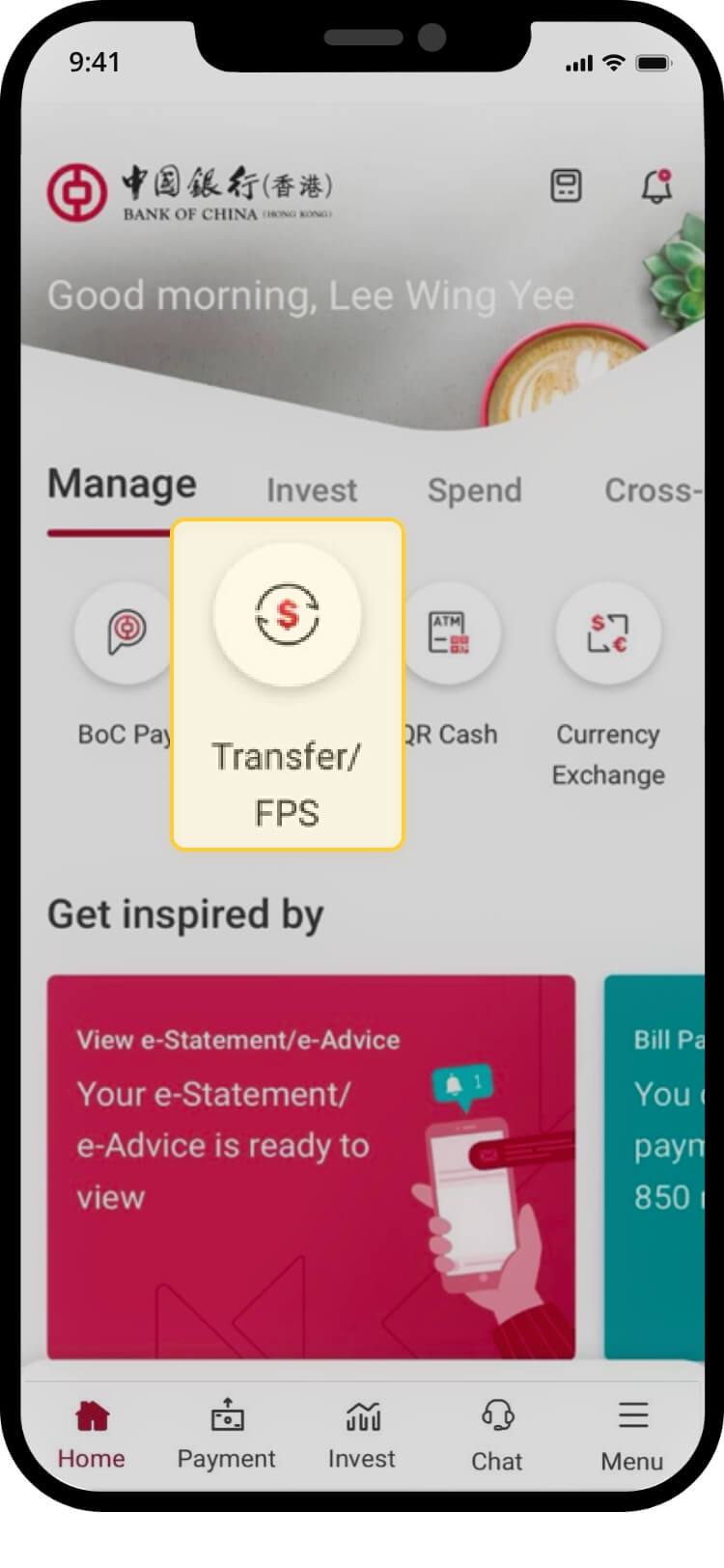
01 · open transfer. Log on, then under manage tap transfer / FPS.
-
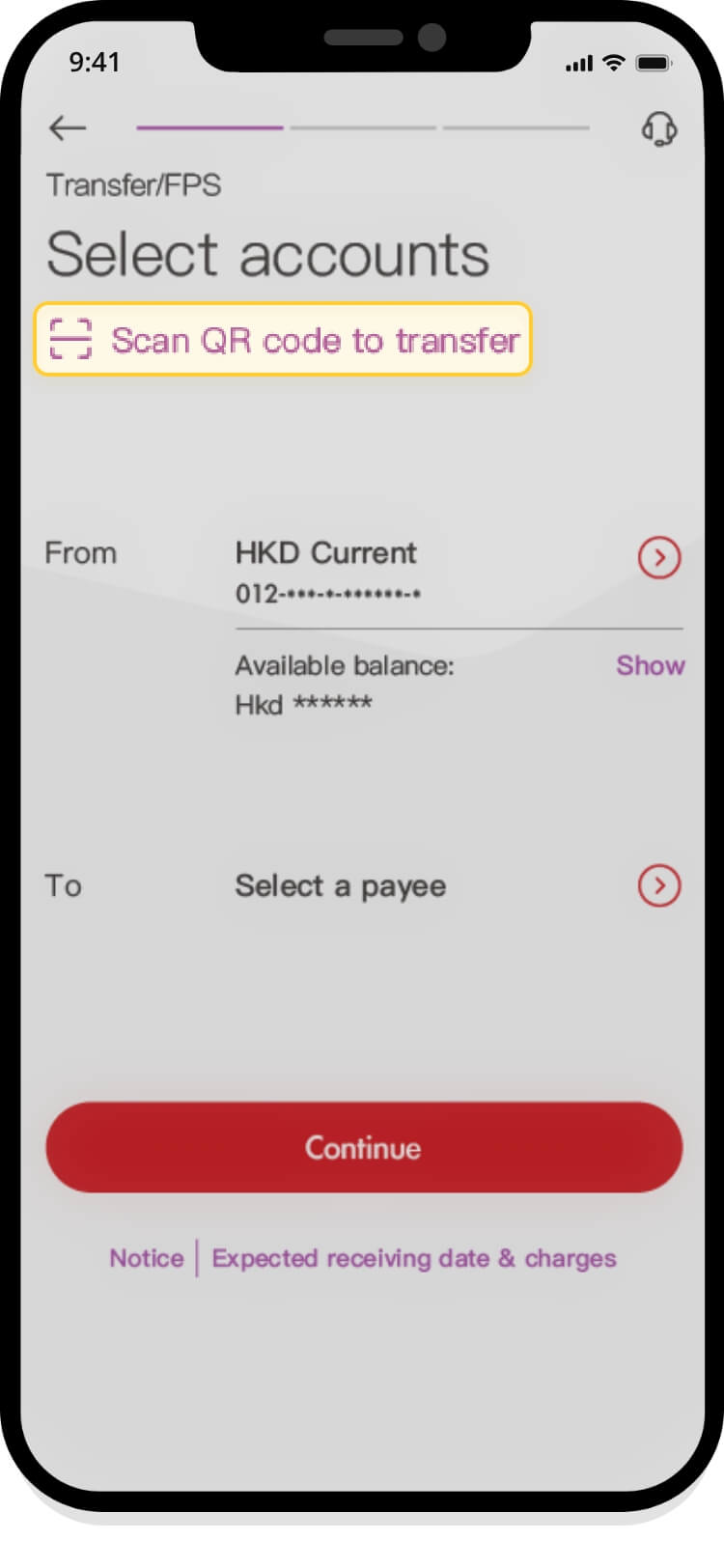
02 · choose scan to transfer. Tap scan QR code to transfer.
-
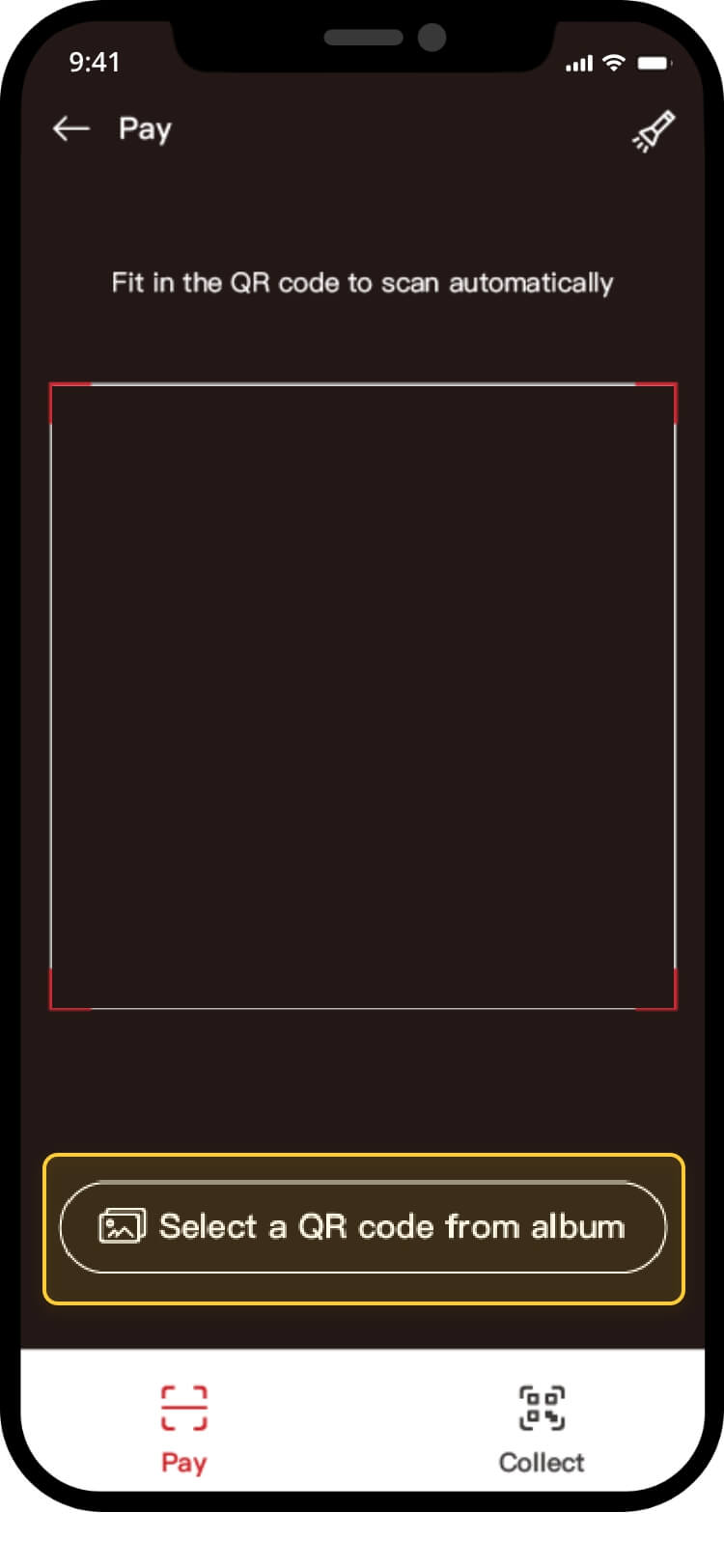
03 · select the photo. Tap select a QR code from album and pick the saved divit QR code instead of scanning.
-
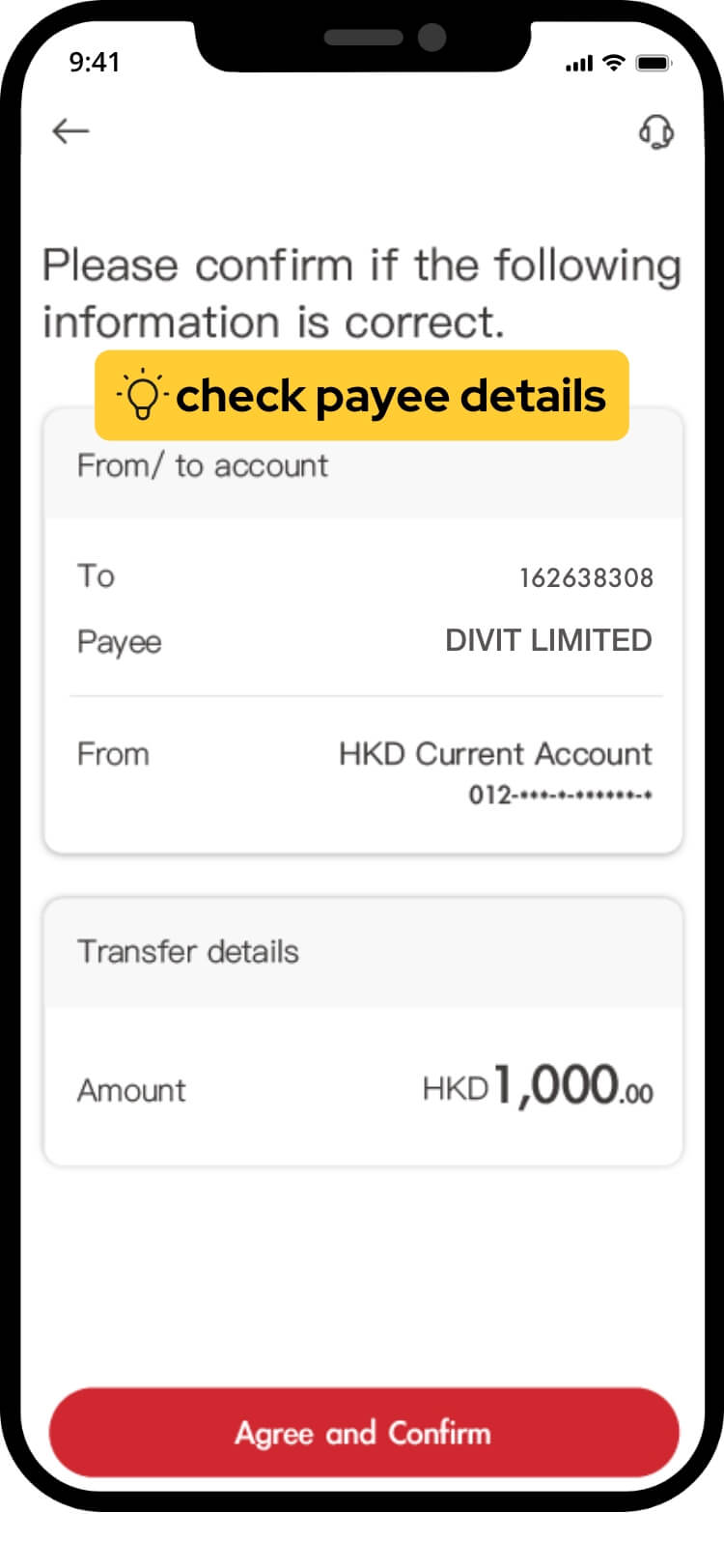
04 · verify and confirm. The details fill in from the QR code — check them and tap confirm.
-
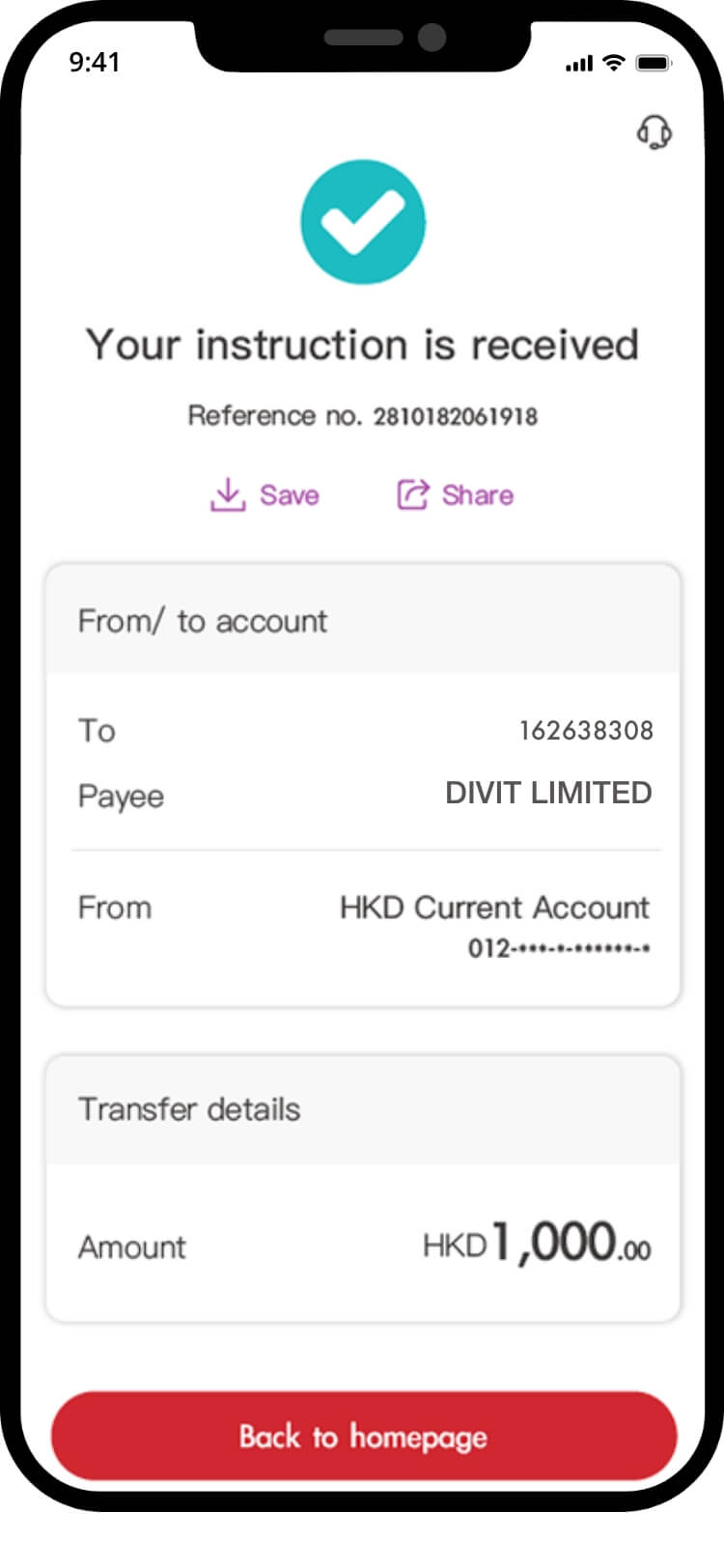
05 · done. Your transfer is complete — confirmation follows by SMS and email.
pay by FPS ID
-
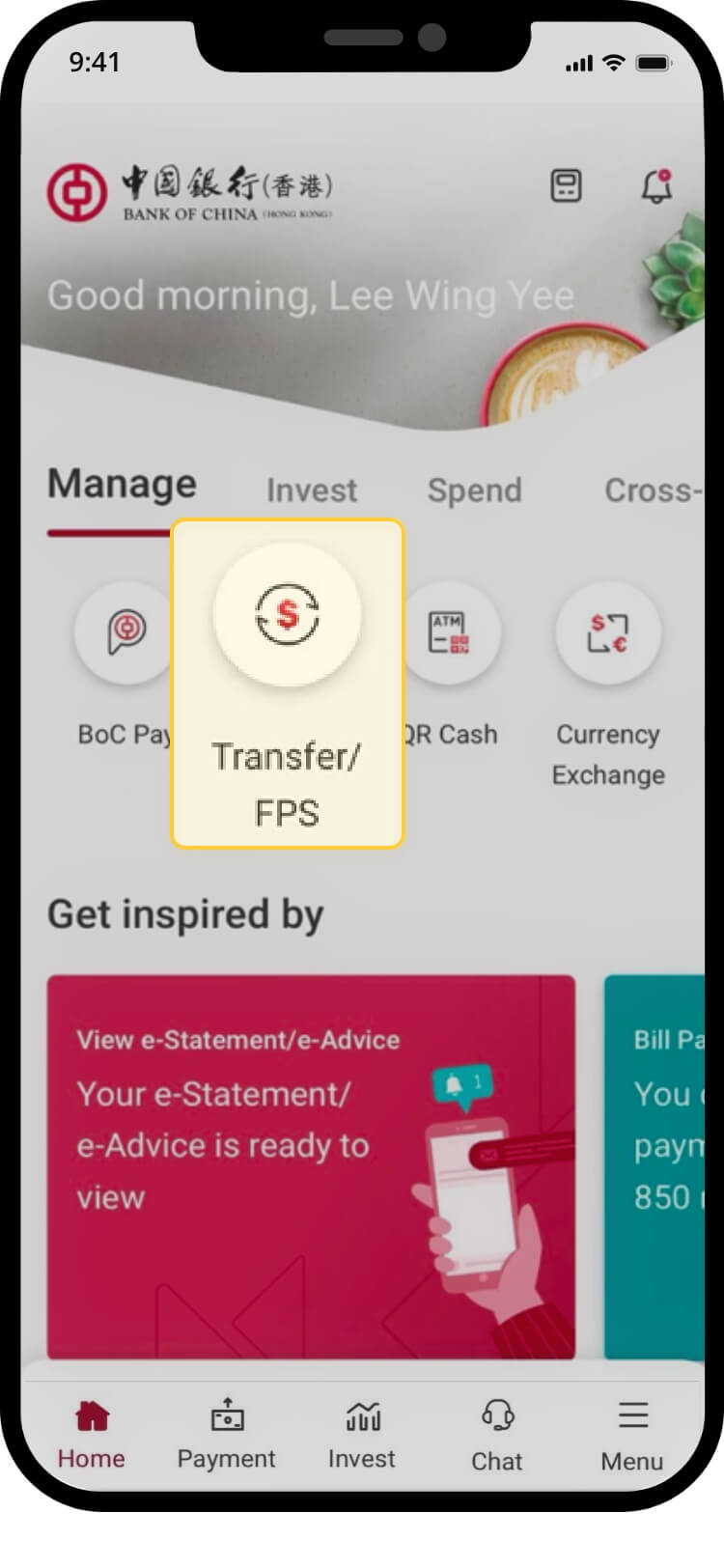
01 · open transfer. Log on, then under manage tap transfer / FPS.
-
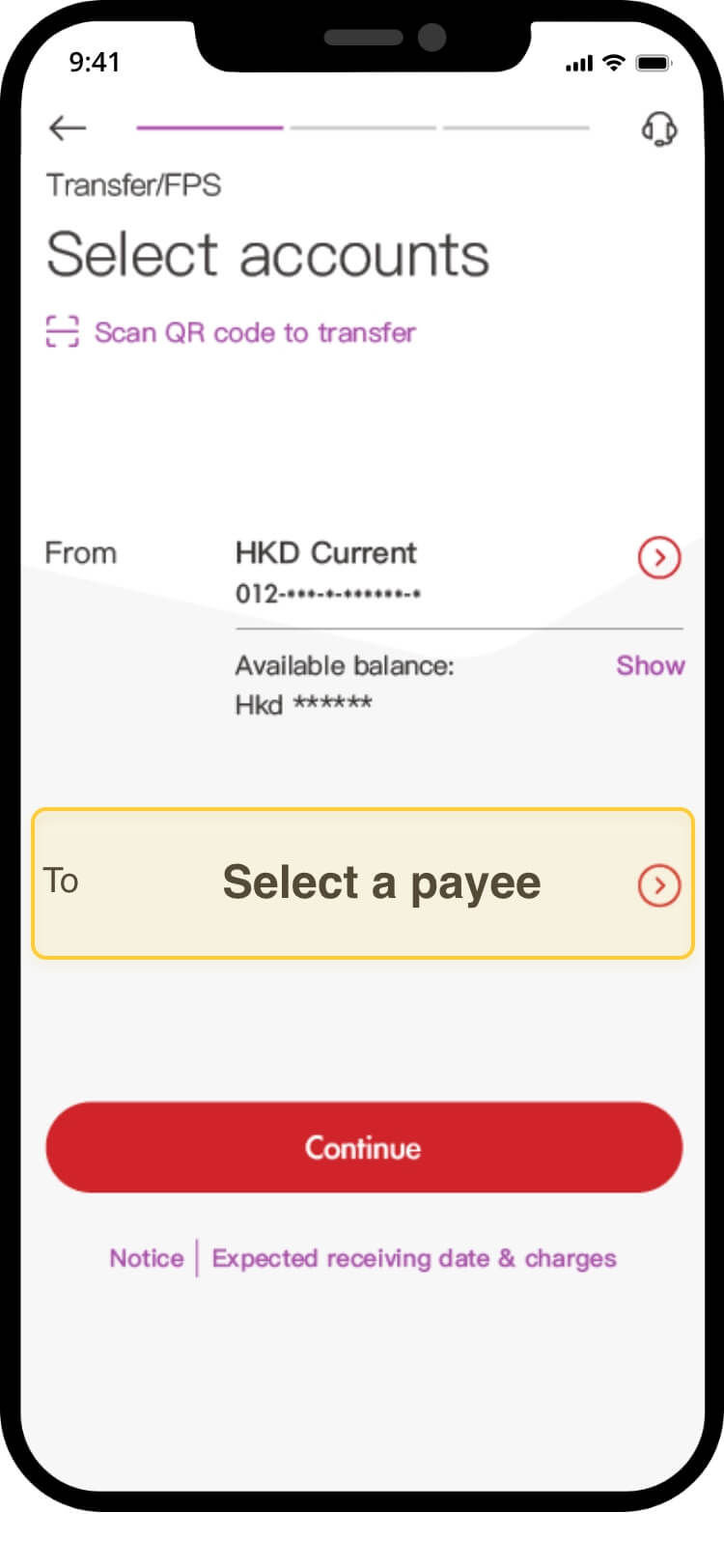
02 · select a payee. Tap select a payee.
-
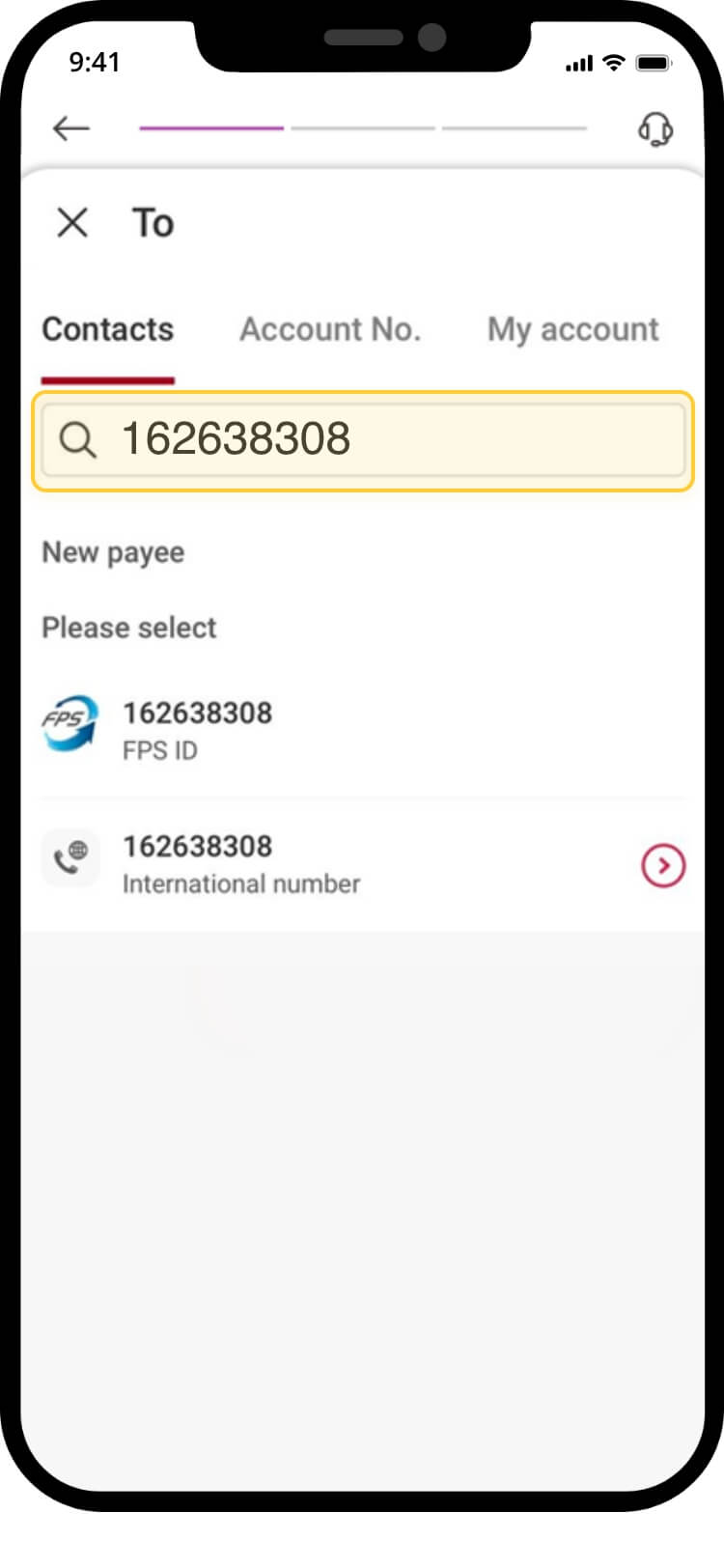
03 · enter divit’s FPS ID. Enter 162638308 and select divit from the results — your confirmation you have the right number.
-
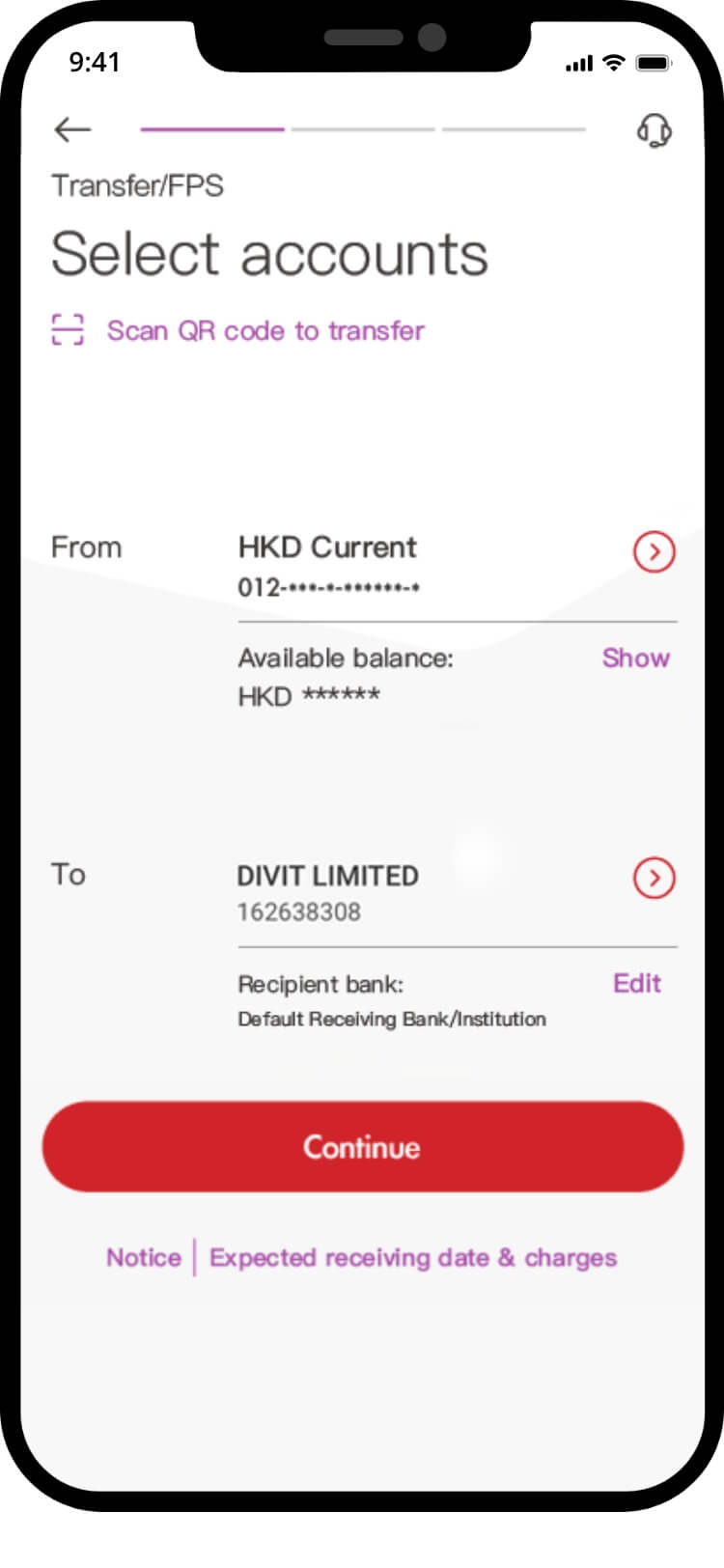
04 · choose from-account. Select your preferred account to pay from.
-
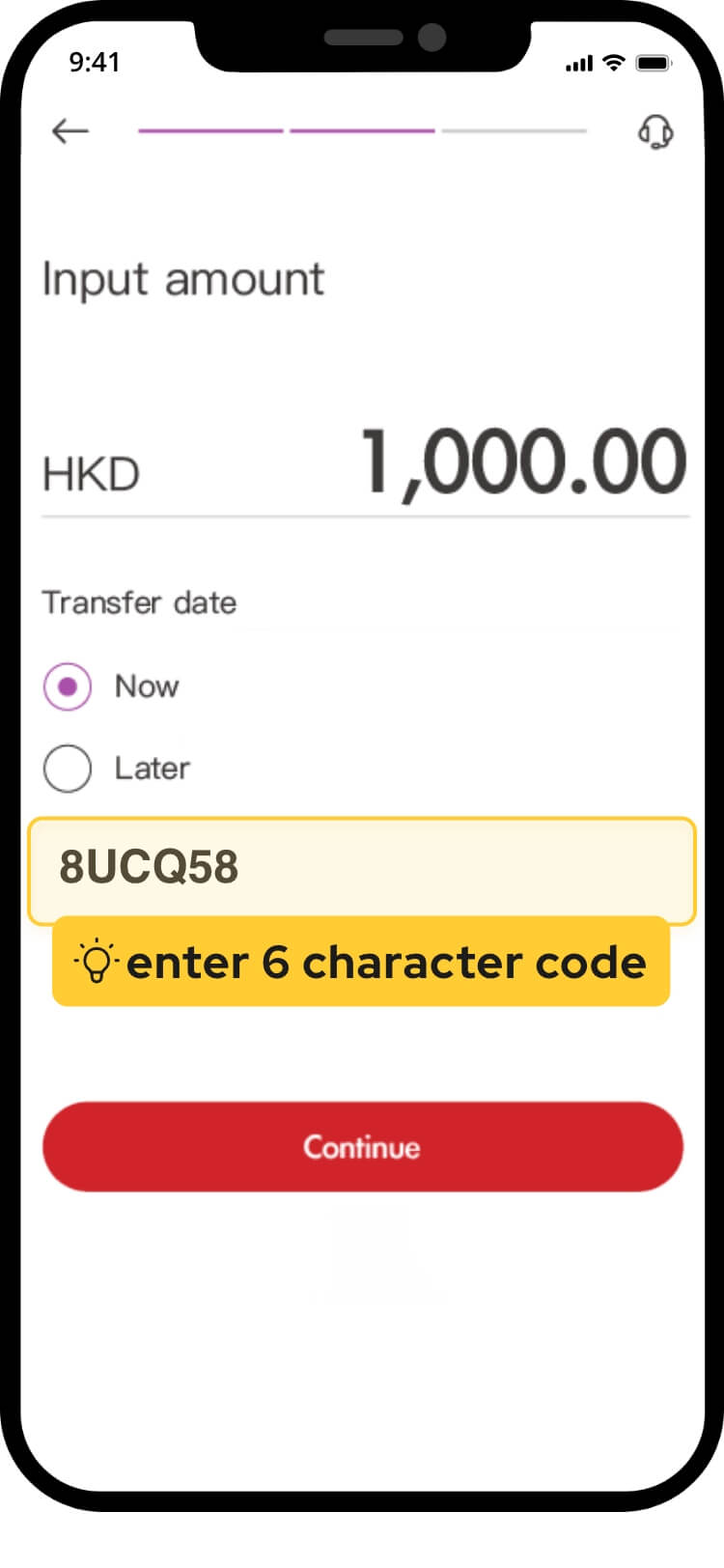
05 · amount + order code. Enter the amount and put the 6-character code from your order in remarks — without it your order may not be confirmed.
-
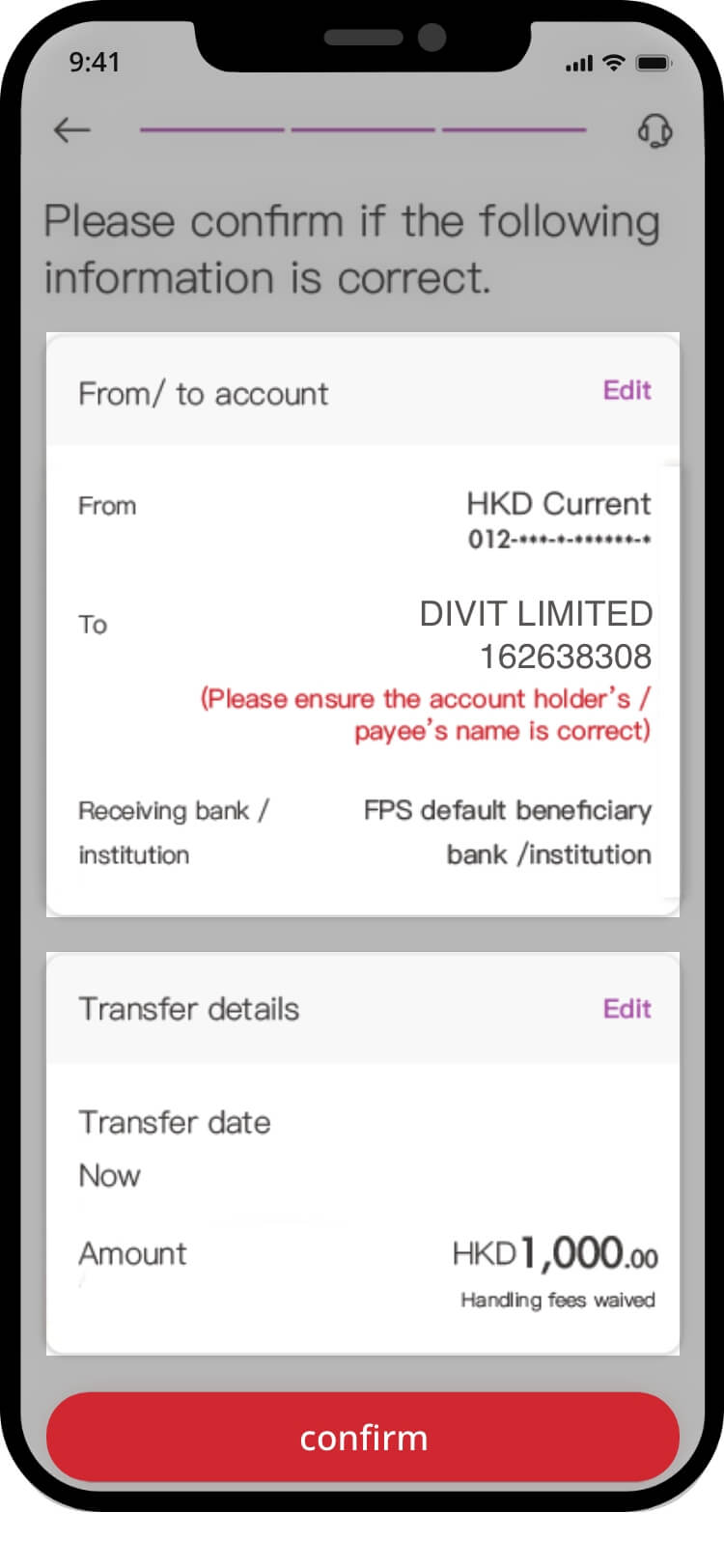
06 · verify and confirm. Check the transaction details and tap confirm.
-
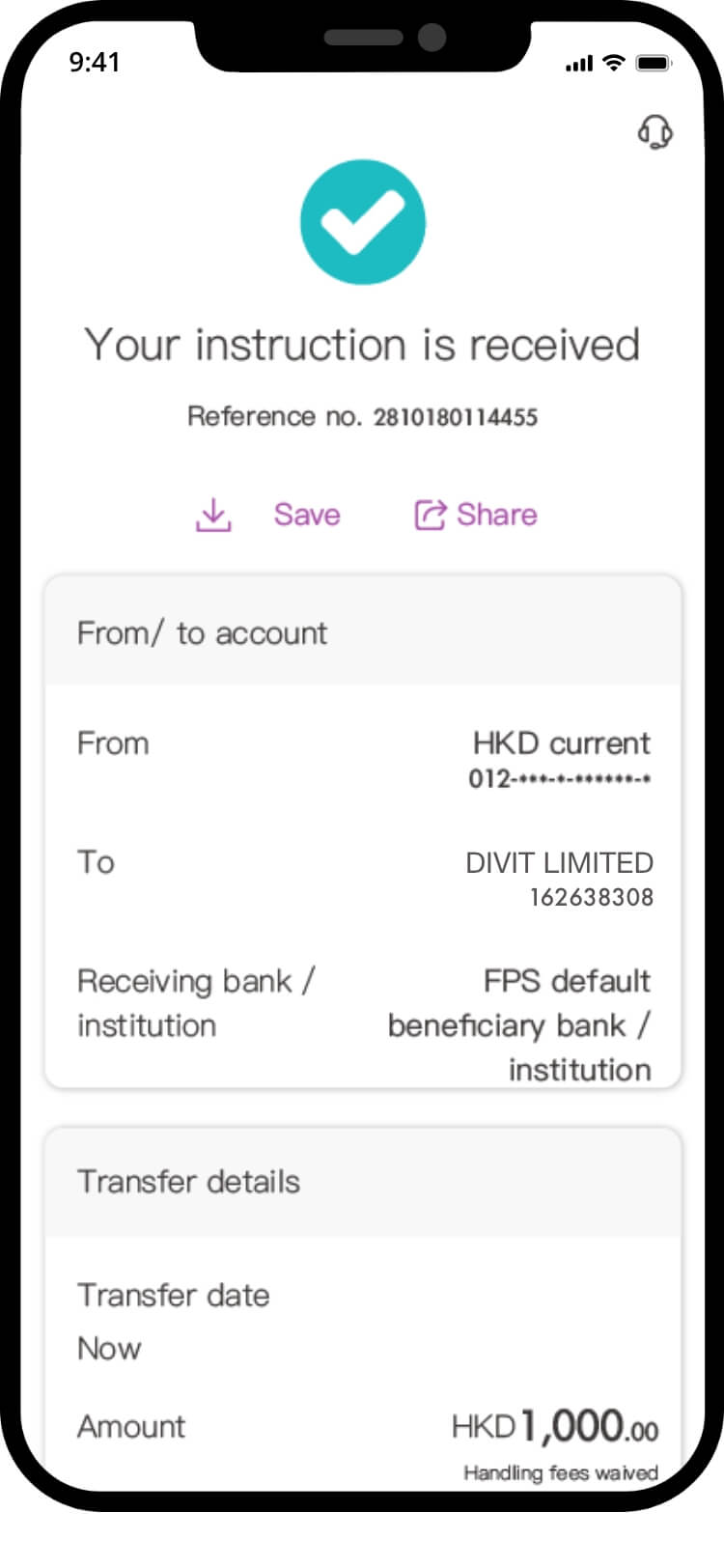
07 · done. Your transfer is complete — confirmation by SMS and email.
Screens are from Bank of China’s app and may have changed since these were captured — treat them as the shape of the journey, not a pixel-exact guide.
not with BOC?
guides for other banks
The same three methods work on every major Hong Kong bank. Pick yours:
HSBC Citi Hang Seng Standard Chartered all banks & the basics
still stuck?
we’re happy to help
check the FAQ or get in touch with the divit support team